Compare views
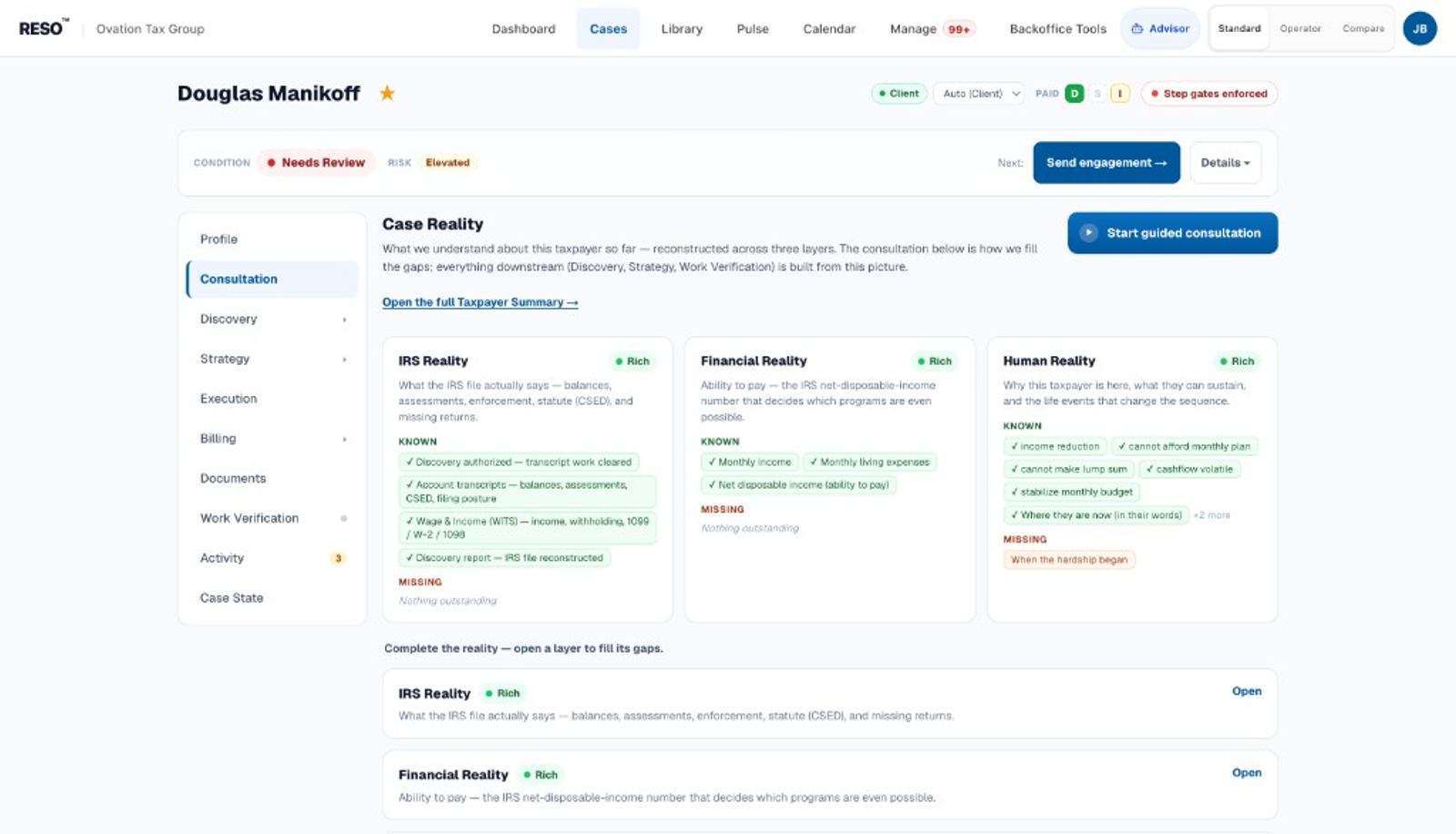
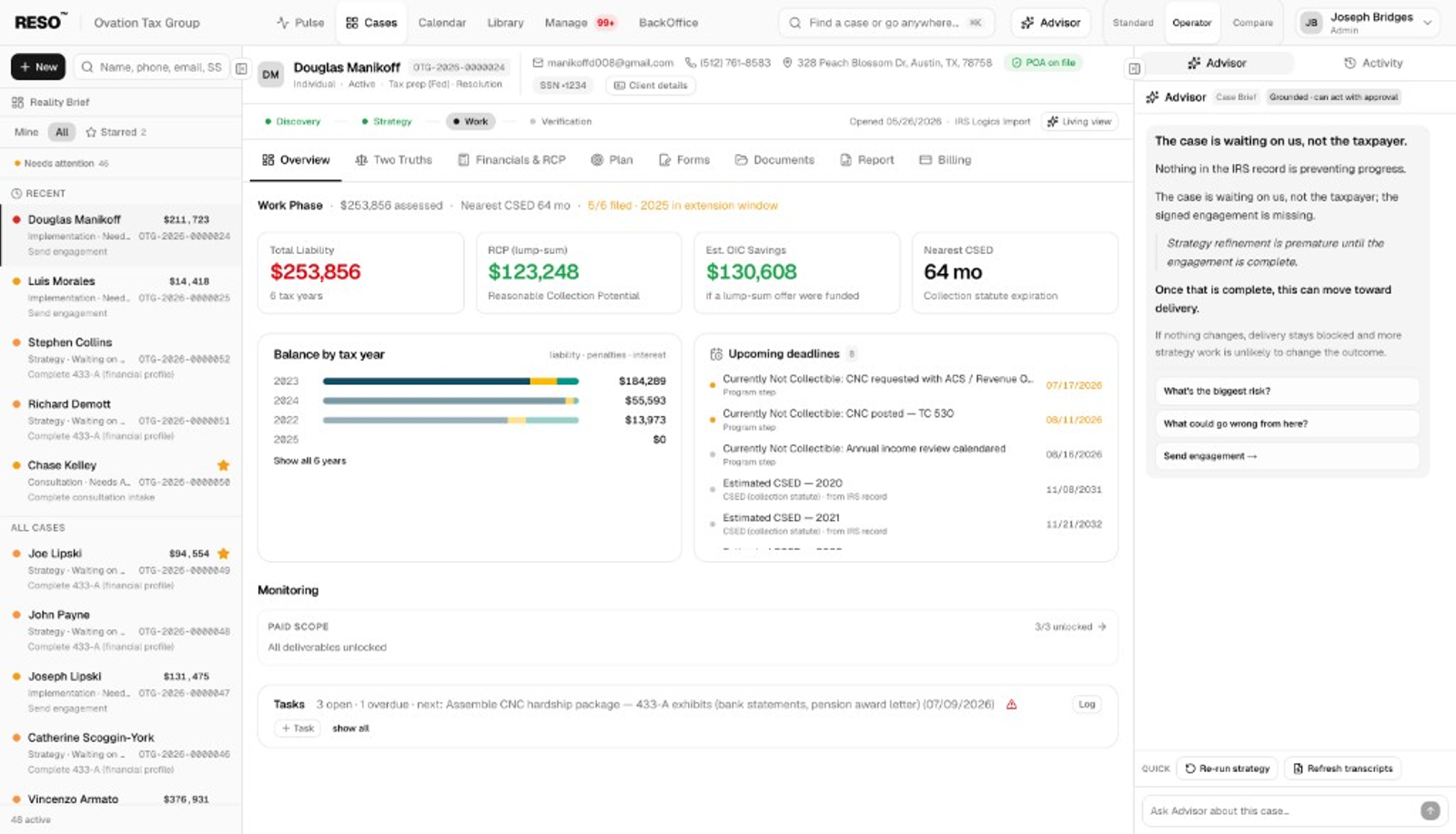
Same case record, billing, and deliverables. The difference is how you navigate and how much context stays on screen.
| Dimension | Standard View | Operator View |
|---|---|---|
| Core metaphor | Traditional SaaS / CRM — navigate through the case | Operator workspace / IDE — operate the case |
| Layout | Page-based, one case area at a time | Multi-pane — list · workspace · Advisor |
| Density | Moderate, spacious | High — more on screen at once |
| Navigation | Top nav + case-local sidebar (Consultation, Discovery, Strategy…) | Global nav + persistent case list + case tabs |
| Case switching | Return to Cases, then open another matter | Cases always visible — less in/out navigation |
| Advisor | Separate, on-demand surface from the nav | Persistent side panel in the workspace |
| Workflow feel | Guided, sequential — where am I? what section? what next? | Operational, fluid — what needs me? what is happening? what next? |
| Discoverability | Higher for new users | Lower at first, faster after learning |
| Large-screen use | Good | Excellent |
| Power-user efficiency | Good | Better for volume and context retention |
| Heavy operational work | Native tabs — transcripts, strategy, 433, billing, documents | Same modules mounted when needed — one case record |
| Best fit | General users, occasional users, intake/sales, newer firms | High-volume practitioners, case managers, resolution specialists |
Switch workspace layout
Header or account menu → Workspace layout → Standard or Operator. Your choice is remembered on this browser. Firm admins can set the default under Settings → Workspace.
Clear, guided case navigation
Standard View
The polished, page-based RESO experience. Enter a case, choose Consultation, Discovery, Strategy, Execution, Billing, or Documents, and work through each area with stage gates keeping deliverables honest.
Starts at: My Day — then Cases for the full firm table.
Who it's for
- Reception, intake, and sales — clarity over density
- Firm admins who live in the full cases table, saved views, and filters
- Anyone new to RESO who needs obvious “where am I?” navigation
- Operators who start on My Day and work through Consultation → Discovery → Strategy in order
Firm desk
- My Day — since you were here, today’s priorities, firm reality, operational risk
- Setup nudges — IRS Logics, telephony, Case Bridge
- Production visibility for admins
- Pinned / white-glove cases
Cases home
- Full searchable table — relationship, paid scope, status, health URLs
- Saved views and column picker
- New case + IRS Logics prefill
Inside a case
- Phase ribbon — Qualification through Work Verification
- CaseRail — contact, balance, complexity, paid scopes
- Questionnaires, Reports & Strategy, Resolution, Billing, Documents, Activity
- Case Reality — IRS, Financial, Human layers
Same platform
- Identical case data, transcripts, strategy engine, and billing
- Pulse, Calendar, Library, Manage
- RESO Advisor available on demand from the nav
- Switch to Operator View anytime — preference is saved
Typical day
- Sign in → My Day → open today’s priority → work the active tab
- Cases → filter by health or owner → review the queue
- Guided consultation → Discovery report → Strategy when gates clear
High-density operating workspace
Operator View
The high-density operating environment. Case list on the left, active case in the center, Advisor on the right. You do not constantly navigate in and out of cases to see what needs you.
Starts at: Operator workspace — Reality Brief when no case is open.
Who it's for
- Resolution specialists and case managers working many matters per day
- Strategy reviewers who need liability, RCP, plan, and deadlines in one frame
- Power users who benefit from context retention across cases
- Default for new firms — switch to Standard if density feels intimidating at first
Workspace shell
- Persistent case list — recent, search, starred, segments
- Center workspace — Overview, Two Truths, Plan, Forms, Report, Billing
- Advisor rail — grounded brief, prompts, approval-gated actions
- Same Pulse, Calendar, Library, Manage in the firm header
Case intelligence
- Overview — liability, RCP, savings, CSED, deadlines, tasks
- Decision Confidence — blocking issues and capture CTAs
- Reality Brief — firm-wide priorities when no case is selected
- Living Case for narrative reconstruction
When production is due
- Open the same tabbed modules (transcripts, questionnaires, strategy PDFs, billing)
- Mounted at /v4/cases/[id] — not a second product
- One blocker engine, one case record
Same platform
- Different people in the same firm can prefer different views
- Neither view is deprecated — choose per role or habit
- Switch to Standard View from account menu or Settings → Workspace
Typical day
- Scan Reality Brief → open the hero case → review Overview
- Ask Advisor a grounded question → act with approval
- Jump to mounted module for transcript or Strategy PDF
- Pick up the next case from the list without leaving the workspace
Try both on your firm
New firms default to Operator View. Use Standard View if you want the clearest guided path — switch anytime.